
Adobe Illustrator is the industry standard for vector-based design. Unlike Photoshop, which focuses on raster images (pixels), Illustrator allows designers to create scalable graphics that never lose quality. This makes it perfect for logos, icons, typography, and illustrations. If you’re new to Illustrator, this guide will help you understand the basics of vector design.
1. Why Use Illustrator?
Scalable Graphics – Designs remain sharp at any size, from business cards to billboards.
Precision – Vector tools allow exact control over shapes and lines.
Versatility – Great for branding, UI design, typography, and illustrations.
Integration – Works seamlessly with Photoshop, InDesign, and After Effects.
2. Understanding Vectors vs. Rasters
Raster Images – Made of pixels (e.g., JPEG, PNG), can become blurry when enlarged.
Vector Graphics – Made of mathematical paths, remain crisp at any size (e.g., SVG, EPS).
Illustrator works primarily with vectors, making it ideal for logo and icon design.
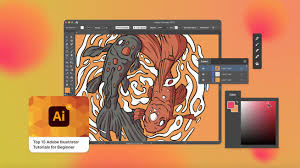
3. The Illustrator Workspace
Toolbar – Tools for drawing, selecting, and editing objects.
Properties Panel – Shows options for the currently selected tool or object.
Layers Panel – Organizes artwork into layers, similar to Photoshop.
Artboards – Can create multiple canvases in one document (useful for logo variations).
4. Key Tools for Beginners
Selection Tool (V) – Selects entire objects.
Direct Selection Tool (A) – Selects anchor points and paths for precise edits.
Pen Tool (P) – Create custom shapes with anchor points and curves.
Shape Tools (M, L) – Quickly draw rectangles, circles, polygons.
Type Tool (T) – Add text with full typographic control.
Eyedropper Tool (I) – Sample and apply colors.
5. Essential Concepts
Anchor Points & Paths – The foundation of vector graphics.
Stroke vs. Fill – Stroke is the outline; fill is the interior color.
Grouping (Ctrl/Cmd + G) – Combine multiple objects into one.
Layers – Organize artwork for complex projects.
6. Simple Workflow for Beginners
Create a New Document – File > New. Choose an artboard size.
Draw Shapes – Use rectangles, circles, and polygons to build your design.
Use the Pen Tool – Create custom shapes with curves and lines.
Add Color – Apply fills, strokes, and gradients.
Add Text – Use the Type Tool to add and style text.
Export Your Work – File > Export > Save As (SVG, PDF, PNG, etc.).
7. Tips for Beginners
Use Smart Guides (Ctrl/Cmd + U) for alignment help.
Learn the Pen Tool—it’s tricky at first but powerful.
Keep designs simple; start with basic shapes.
Explore Illustrator templates for inspiration.
8. Next Steps
After mastering the basics, move on to:
Creating logos and branding systems.
Designing icons and UI assets.
Advanced typography design.
Using Pathfinder and Shape Builder tools for complex shapes.
Conclusion
Adobe Illustrator is an essential tool for any designer interested in vector graphics. By learning the basics of the workspace, tools, and vector concepts, beginners can quickly start creating professional designs. With practice, Illustrator becomes a powerful tool for bringing ideas to life—scalable, sharp, and endlessly creative.