Blender Basics for 3D Design

Blender is a free, open-source 3D software that has become one of the most powerful tools for 3D modeling, animation, and rendering. From game assets to product visualization and even films, Blender is used by professionals and hobbyists alike. This beginner’s guide introduces the basics of Blender for 3D design.


1. Why Use Blender?

  • Free & Open Source – No cost, with a strong community of developers.

  • All-in-One – Supports modeling, sculpting, animation, rendering, and video editing.

  • Industry Adoption – Used in indie films, game studios, and design agencies.

  • Cross-Platform – Available on Windows, macOS, and Linux.

  • Constant Updates – Frequent improvements and new features.


2. The Blender Interface

  • 3D Viewport – Main area to model and manipulate objects.

  • Outliner – Organizes all objects in the scene.

  • Properties Panel – Adjusts materials, modifiers, and settings.

  • Timeline – For animation and keyframe editing.

  • Toolbar – Contains selection, transform, and modeling tools.


3. Key Concepts for Beginners

  • Meshes – Basic objects (cube, sphere, cylinder) used for modeling.

  • Vertices, Edges, Faces – The building blocks of 3D models.

  • Modifiers – Non-destructive edits like subdivision or mirror.

  • Materials & Shaders – Define how objects look (color, texture, reflection).

  • Lighting – Essential for realistic renders.

  • Camera – Controls the viewpoint for rendering.


4. Basic Workflow in Blender

  1. Start a New Project – File > New > General.

  2. Add Objects – Shift + A to insert cubes, spheres, or other primitives.

  3. Edit Mode – Tab key to switch between Object Mode and Edit Mode.

  4. Modeling – Move, extrude, and scale to shape your design.

  5. Apply Materials – Use the Properties Panel to add colors and textures.

  6. Lighting & Camera – Place lights and adjust the camera angle.

  7. Render – Press F12 to generate an image of your scene.


5. Tips for Beginners

  • Learn navigation: middle mouse button to rotate, Shift + middle button to pan, scroll to zoom.

  • Use mirror modifier for symmetrical models.

  • Save often—Blender projects can get complex.

  • Start with simple models (e.g., a coffee cup) before moving to advanced projects.


6. Advanced Features to Explore

  • Sculpting – Create organic models like characters.

  • Animation – Add keyframes for movement and effects.

  • Grease Pencil – 2D animation inside a 3D environment.

  • Cycles & Eevee Render Engines – Realistic vs. real-time rendering.

  • Add-ons – Extend Blender with free or paid plugins.


Conclusion

Blender is a powerful, versatile tool for 3D design that rivals paid software. By mastering the basics of modeling, materials, and rendering, beginners can quickly bring their 3D ideas to life. With dedication and practice, Blender opens the door to animation, game design, and professional 3D art—all for free.


Procreate for Digital Artists

Procreate has become one of the most popular apps for digital artists, especially those who use iPads. Known for its intuitive interface, realistic brushes, and powerful features, it offers a portable yet professional solution for illustration and painting. This guide introduces beginners to Procreate and how to get started with digital art.


1. Why Use Procreate?

  • Portable – Works seamlessly on iPad with Apple Pencil.

  • Natural Feel – Realistic brushes mimic traditional drawing and painting.

  • Powerful Features – Layers, blending modes, and advanced effects.

  • Affordable – One-time purchase, no subscription needed.

  • Community – Huge online community offering brushes and tutorials.


2. Understanding the Workspace

  • Gallery – Where you manage and organize artworks.

  • Canvas – The digital drawing surface.

  • Brush Library – Includes pencils, inks, paints, and special effects.

  • Layers Panel – Organize artwork elements with blending and opacity settings.

  • Adjustments Menu – Apply effects like blur, liquify, and color balance.


3. Key Tools for Beginners

  • Brush Tool – Draw and paint with customizable brushes.

  • Smudge Tool – Blend colors and create soft transitions.

  • Eraser Tool – Use any brush as an eraser for creative effects.

  • Selection Tool – Isolate and edit specific parts of your canvas.

  • Transform Tool – Scale, rotate, and distort elements.

  • Color Picker – Tap and hold to select colors from your canvas.


4. Basic Workflow in Procreate

  1. Create a New Canvas – Choose preset sizes or set custom dimensions.

  2. Sketch – Use a pencil brush to draft your idea.

  3. Inking – Refine your sketch with clean lines.

  4. Coloring – Add base colors using brushes or color drop.

  5. Shading – Use blending brushes or layer modes for depth.

  6. Final Touches – Apply effects like blur, textures, or highlights.

  7. Export Your Artwork – Save as PNG, JPEG, PSD, or even time-lapse videos.


5. Tips for Beginners

  • Use layers for sketching, coloring, and shading separately.

  • Explore blending modes for lighting and texture effects.

  • Customize brushes or download free ones from the Procreate community.

  • Learn gesture shortcuts (e.g., two-finger tap to undo).


6. Advantages of Procreate

  • Smooth drawing experience with Apple Pencil pressure sensitivity.

  • Rich brush customization options.

  • Time-lapse recording built in—great for sharing process videos.

  • Perfect balance of simplicity and professional power.


7. Advanced Features to Explore

  • Animation Assist – Create frame-by-frame animations.

  • QuickShape – Perfect your shapes with one gesture.

  • Clipping Masks – Apply shading and textures easily.

  • Custom Brushes – Build your own brushes for unique styles.


Conclusion

Procreate empowers digital artists to create professional illustrations and paintings on the go. With its natural drawing feel, powerful tools, and supportive community, it’s perfect for beginners and seasoned artists alike. By learning layers, brushes, and shortcuts, you can bring your creative ideas to life with Procreate.

CorelDRAW Essentials for Beginners

CorelDRAW is a powerful vector graphic design software widely used for branding, illustration, and print design. Known for its user-friendly interface and robust toolset, it’s a great choice for designers seeking an alternative to Adobe Illustrator. This guide covers the basics of CorelDRAW to help beginners start their design journey.


1. Why Use CorelDRAW?

  • Versatile – Suitable for logos, brochures, posters, and web graphics.

  • User-Friendly – Intuitive interface makes it beginner-friendly.

  • Vector Power – Create scalable graphics with precision.

  • Print-Ready – Strong features for preparing professional print projects.

  • Flexible Pricing – Available via one-time purchase or subscription.


2. Understanding the Workspace

  • Toolbox – Contains drawing, shaping, and editing tools.

  • Property Bar – Displays context-sensitive options for selected tools.

  • Docker Panels – Manage layers, colors, and object properties.

  • Drawing Page – The canvas where you design.

  • Rulers & Guidelines – Ensure precise alignment and measurements.


3. Key Tools for Beginners

  • Pick Tool – Select, move, and resize objects.

  • Shape Tool – Edit nodes and curves of vector paths.

  • Bezier Tool – Draw custom vector paths.

  • Rectangle & Ellipse Tools – Create basic shapes.

  • Text Tool – Add artistic or paragraph text.

  • Smart Fill Tool – Apply colors to specific areas.


4. Basic Workflow in CorelDRAW

  1. Start a New Document – Choose your page size and color mode (RGB for digital, CMYK for print).

  2. Draw Shapes – Use rectangle, ellipse, and polygon tools.

  3. Edit Paths – Refine shapes with the Shape Tool.

  4. Add Text – Insert titles, slogans, or paragraphs.

  5. Apply Colors & Effects – Use the Color Palette and fills.

  6. Arrange Objects – Use alignment tools for clean layouts.

  7. Export Your Design – Save as PDF, PNG, or AI-compatible formats.


5. Tips for Beginners

  • Learn the difference between artistic text (for titles) and paragraph text (for body copy).

  • Use layers to organize complex projects.

  • Experiment with PowerClip to insert images into shapes.

  • Keep designs clean and simple—avoid unnecessary effects at the start.


6. Advantages of CorelDRAW

  • Strong support for print production.

  • Wide range of vector illustration tools.

  • Flexible file compatibility with Adobe formats.

  • Easier learning curve compared to some competitors.


7. Advanced Features to Explore

  • Mesh Fill Tool – Create realistic shading and gradients.

  • Typography Control – Fine-tune kerning, leading, and text effects.

  • Bitmap Editing – Basic photo editing directly inside CorelDRAW.

  • Macros & Extensions – Automate repetitive tasks.


Conclusion

CorelDRAW remains a top choice for designers who want powerful vector design capabilities with an accessible interface. Beginners can start by learning basic shapes, text tools, and color applications before moving on to advanced effects and layouts. Whether for branding, print, or digital work, CorelDRAW provides everything needed to produce professional results.

Affinity Designer: A Cost-Effective Alternative to Adobe

Affinity Designer has gained popularity as a professional yet affordable alternative to Adobe Illustrator. It offers powerful vector and raster design tools, making it ideal for graphic designers, illustrators, and UI/UX professionals. This guide introduces beginners to Affinity Designer and shows why it’s a strong contender in the design software market.


1. Why Choose Affinity Designer?

  • One-Time Purchase – No subscription fees, unlike Adobe Creative Cloud.

  • Dual Environment – Switch between vector and raster workspaces.

  • Performance – Optimized for speed and large projects.

  • Compatibility – Supports PSD, AI, PDF, SVG, and EPS files.

  • Cross-Platform – Available for Windows, macOS, and iPad.


2. The Affinity Designer Workspace

  • Toolbar – Contains drawing, selection, and editing tools.

  • Studio Panels – Manage layers, colors, brushes, and effects.

  • Personas – Unique feature that lets you switch between different workflows:

    • Designer Persona (vector design).

    • Pixel Persona (raster editing).

    • Export Persona (exporting assets).


3. Key Tools for Beginners

  • Pen Tool – Create vector paths and custom shapes.

  • Shape Tools – Rectangles, ellipses, polygons, and more.

  • Node Tool – Edit vector paths with precision.

  • Text Tool – Add and style text for typography.

  • Brushes – Add artistic effects in Pixel Persona.

  • Color Picker – Sample and apply colors easily.


4. Basic Workflow in Affinity Designer

  1. Create a New Document – File > New. Choose your canvas size.

  2. Draw Shapes – Start with vector shapes as your foundation.

  3. Edit Paths – Use the Pen Tool and Node Tool for custom designs.

  4. Switch to Pixel Persona – Add textures or paint-like effects.

  5. Add Text – Use the Text Tool for titles, logos, or UI elements.

  6. Export Assets – Use Export Persona for optimized outputs.


5. Advantages for Designers

  • No Subscription Pressure – Pay once, use forever.

  • Smooth Performance – Handles complex files without lag.

  • Seamless Workflow – Switch between vector and raster in one app.

  • Frequent Updates – Serif (the developer) actively improves the software.


6. Tips for Beginners

  • Learn Personas early—this is Affinity Designer’s biggest strength.

  • Use Symbols for reusable UI elements.

  • Explore the Assets Panel for pre-made components.

  • Practice switching between vector and raster workflows for hybrid designs.


7. Advanced Features to Explore

  • Isometric Grids – Great for game or UI design.

  • Custom Brushes – Build unique textures for illustrations.

  • Non-Destructive Adjustments – Edit without permanently changing your artwork.


Conclusion

Affinity Designer is a powerful, affordable design tool that rivals Adobe Illustrator while offering unique features like Personas. For freelancers, small studios, or anyone seeking a cost-effective solution, it’s a fantastic option for vector and raster design. By mastering the basics of tools, personas, and exports, beginners can create professional-quality designs without breaking the bank.

Canva Tips for Quick and Easy Design

Canva has revolutionized design for beginners and professionals alike. As a browser-based tool, it allows anyone to create graphics, presentations, and social media posts quickly—without needing advanced design knowledge. This guide highlights key tips for making the most of Canva for quick and easy design.


1. Why Use Canva?

  • User-Friendly – Drag-and-drop interface with no steep learning curve.

  • Templates – Thousands of pre-made templates for various purposes.

  • Cloud-Based – Access designs from any device.

  • Collaboration – Share projects with teammates or clients.

  • Free & Pro Options – Plenty of free resources, with premium features for Pro users.


2. Understanding the Workspace

  • Sidebar – Contains templates, elements, text, and uploads.

  • Canvas – The main area where you design.

  • Top Menu – Adjust colors, fonts, alignment, and effects.

  • Brand Kit (Pro) – Save your brand colors, fonts, and logos.


3. Essential Tips for Beginners

1. Start with Templates

Choose a template as your base—perfect for social media posts, presentations, or posters.

2. Use Brand Kit

Keep your designs consistent by saving brand colors, fonts, and logos.

3. Explore Elements

Search for icons, shapes, illustrations, and photos in the Elements tab.

4. Master Text Hierarchy

Use different font sizes and weights to guide attention.

5. Utilize Grids & Frames

Easily align images and create neat photo collages.


4. Advanced Tips for Better Designs

  • Transparency – Adjust opacity for layered effects.

  • Animations – Add motion to presentations and social posts.

  • Magic Resize (Pro) – Instantly resize designs for different platforms.

  • Background Remover (Pro) – Quickly remove image backgrounds.

  • Charts & Infographics – Visualize data clearly.


5. Collaboration Features

  • Share Link – Allow teammates to view or edit designs.

  • Commenting – Clients can leave feedback directly on designs.

  • Folders – Keep projects organized for different clients or campaigns.


6. Exporting Designs

  • PNG/JPEG – For images.

  • PDF – For print documents.

  • MP4/GIF – For animated designs.

  • Direct Share – Post directly to social media platforms.


7. Tips for Saving Time

  • Create templates for recurring content (e.g., Instagram posts).

  • Use keyboard shortcuts (e.g., “T” for text, “R” for rectangle).

  • Duplicate designs instead of starting from scratch.


Conclusion

Canva is one of the easiest and fastest tools for creating professional-looking designs. By leveraging templates, brand kits, and collaboration features, designers and non-designers alike can produce stunning graphics in minutes. Whether for business, social media, or personal projects, Canva makes design accessible to everyone.

Getting Started with Sketch for UI Design

Sketch is a vector-based design tool widely used in UI/UX design, particularly for macOS users. Known for its clean interface and strong plugin ecosystem, Sketch has long been a favorite among designers creating websites, mobile apps, and digital products. This guide introduces the basics of Sketch to help beginners get started with UI design.


1. Why Choose Sketch?

  • UI/UX Focused – Built specifically for digital design.

  • Lightweight – Runs smoothly, even on older Macs.

  • Scalable Vectors – Perfect for designing responsive interfaces.

  • Plugins & Integrations – Extend functionality with thousands of plugins.

  • Collaboration – Works with Sketch Cloud for sharing and feedback.


2. The Sketch Workspace

  • Canvas – The main design area.

  • Inspector Panel – Displays properties like size, color, and effects.

  • Layers List – Organizes elements and groups.

  • Toolbar – Contains drawing tools, shapes, and symbols.

  • Pages & Artboards – Structure your project into different screens or sections.


3. Key Tools and Features

  • Artboards – Define screen sizes for web and mobile design.

  • Shapes & Vector Editing – Create rectangles, ovals, polygons, and custom paths.

  • Symbols – Reusable elements like buttons, icons, and navigation bars.

  • Text Styles – Maintain consistent typography across your design.

  • Shared Styles – Apply the same color or effect to multiple elements.


4. Basic Workflow in Sketch

  1. Create a New Document – Start with File > New.

  2. Add an Artboard – Choose a device preset (e.g., iPhone, Desktop).

  3. Design UI Elements – Use shapes and text to build the interface.

  4. Convert Elements to Symbols – Make reusable components.

  5. Apply Styles – Ensure consistent colors and typography.

  6. Export Assets – Save icons, images, or entire screens for developers.


5. Collaboration in Sketch

  • Sketch Cloud – Share files with clients and teammates for feedback.

  • Hand-off to Developers – Use integrations like Zeplin or Sketch Inspect for specs.

  • Plugins for Workflow – Extend collaboration features (e.g., real-time comments).


6. Tips for Beginners

  • Use grid and layout settings to maintain alignment.

  • Learn keyboard shortcuts to speed up design tasks.

  • Keep your symbols and styles organized for large projects.

  • Explore Sketch plugins like Craft (by InVision) to enhance productivity.


7. Advanced Features to Explore

  • Prototyping – Create clickable mockups directly in Sketch.

  • Design Systems – Build reusable libraries of symbols and styles.

  • Responsive Resizing – Make elements adapt to different screen sizes.


Conclusion

Sketch remains a powerful tool for UI/UX designers, particularly those working on macOS. With its focus on digital design, symbols, and strong plugin ecosystem, it simplifies the creation of responsive, scalable interfaces. By learning the basics of artboards, symbols, and styles, beginners can quickly start designing professional user interfaces with Sketch.

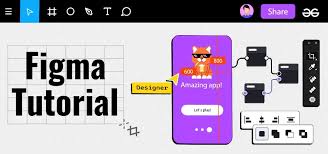
Figma Basics: Collaborative UI/UX Design

Figma has quickly become one of the most popular tools for UI/UX designers. Unlike traditional desktop design software, Figma is cloud-based, allowing real-time collaboration between team members. Whether you’re designing websites, mobile apps, or prototypes, Figma makes the process efficient and accessible.


1. Why Use Figma?

  • Cloud-Based – No need to install heavy software; works in your browser.

  • Real-Time Collaboration – Similar to Google Docs, multiple designers can edit together.

  • Cross-Platform – Works on Windows, Mac, Linux, and even mobile.

  • Free Plan – Offers powerful features at no cost, perfect for beginners.


2. Understanding the Workspace

  • Canvas – The main area where you design.

  • Layers Panel – Organizes frames, groups, and objects.

  • Toolbar – Contains tools for frames, shapes, text, and pen.

  • Properties Panel – Adjusts settings like size, color, and alignment.

  • Assets Panel – Stores reusable components and styles.


3. Key Tools for Beginners

  • Frame Tool (F) – Create artboards for screens (web, mobile, etc.).

  • Shape Tools (R, O) – Build rectangles, circles, and other basic shapes.

  • Pen Tool (P) – Create custom paths and vector shapes.

  • Text Tool (T) – Add and edit typography.

  • Components – Reusable design elements (e.g., buttons, nav bars).

  • Constraints – Control how elements behave when resizing.


4. Basic Workflow for UI Design

  1. Create a Frame – Select a screen size (desktop, iPhone, Android).

  2. Add Layout Grids – Helps align content and maintain consistency.

  3. Design UI Elements – Use shapes, text, and images.

  4. Create Components – Turn repeated elements (buttons, icons) into components.

  5. Apply Styles – Set consistent colors, text styles, and spacing.

  6. Prototype – Link frames with interactive flows.

  7. Share & Collaborate – Invite clients or teammates to view or edit.


5. Collaboration Features

  • Comments – Stakeholders can leave feedback directly on designs.

  • Version History – Access previous versions of your file anytime.

  • Plugins – Extend functionality with tools for icons, stock photos, and charts.


6. Tips for Beginners

  • Start with free UI kits available in the community.

  • Use auto layout for responsive, flexible components.

  • Learn keyboard shortcuts to speed up your workflow.

  • Organize layers with clear names and groupings.


7. Advanced Features to Explore

  • Design Systems – Build a library of components and styles for team consistency.

  • Interactive Components – Create reusable buttons with hover states.

  • FigJam – A whiteboard tool for brainstorming and wireframing.


Conclusion

Figma is a game-changer for UI/UX designers, offering powerful tools for design and collaboration in one platform. By learning frames, components, and prototyping, beginners can quickly create professional user interfaces and share them with clients or teammates. With practice, Figma can become the central hub for all your design projects.

Mastering Adobe InDesign for Layout Design

Adobe InDesign is the industry-leading tool for creating professional layouts. Whether you’re designing magazines, brochures, eBooks, or posters, InDesign gives you precise control over typography, grids, and page organization. This guide introduces beginners to the essentials of layout design using InDesign.


1. Why Use InDesign?

  • Perfect for Multi-Page Projects – Unlike Photoshop or Illustrator, InDesign is built for documents with multiple pages.

  • Typography Control – Advanced text formatting, styles, and flow options.

  • Professional Output – Industry-standard for print and digital publishing.

  • Integration – Works seamlessly with Photoshop (images) and Illustrator (graphics).


2. Understanding the Workspace

  • Pages Panel – Manage and navigate multiple pages.

  • Tools Panel – Selection, text, shape, and frame tools.

  • Properties Panel – Shows context-specific options.

  • Links Panel – Manage placed images and assets.

  • Master Pages – Apply consistent elements (e.g., headers, footers) across multiple pages.


3. Key Tools and Concepts

  • Frames – Containers for text and images. (Text Frame vs. Graphic Frame)

  • Text Tool (T) – Create and edit text boxes.

  • Selection Tool (V) – Move and resize frames.

  • Paragraph & Character Styles – Save and reuse text formatting.

  • Grids & Guides – Maintain alignment and consistency.


4. Setting Up a New Document

  1. File > New > Document – Choose print or digital.

  2. Page Size – Standard A4, Letter, or custom dimensions.

  3. Margins & Bleed – Essential for professional printing.

  4. Columns – Helps structure text for readability.


5. Workflow Example: Creating a Magazine Layout

  1. Set Up Master Pages – Add page numbers, headers, and footers.

  2. Place Images – File > Place (Ctrl/Cmd + D). Use frames for flexible positioning.

  3. Add Text – Import copy and style it with Paragraph/Character Styles.

  4. Apply Grids – Ensure a balanced, clean layout.

  5. Export – File > Export. Save as PDF for print or EPUB for digital.


6. Tips for Beginners

  • Use Paragraph Styles to maintain consistency.

  • Avoid too many fonts—stick to 2–3 max.

  • Use high-resolution images (300 DPI) for print projects.

  • Learn about preflight checks to catch errors before exporting.


7. Advanced Features to Explore

  • Interactive PDFs – Add links, buttons, and media for digital outputs.

  • Data Merge – Automate layouts for catalogs or directories.

  • Color Management – Ensure accurate print colors.


Conclusion

Adobe InDesign is the go-to tool for professional layout design. By understanding frames, master pages, and typography control, beginners can create clean, structured, and professional designs. Whether for print or digital publishing, InDesign ensures precision and creativity in every project.

Illustrator for Beginners: Getting Started with Vector Design

Adobe Illustrator is the industry standard for vector-based design. Unlike Photoshop, which focuses on raster images (pixels), Illustrator allows designers to create scalable graphics that never lose quality. This makes it perfect for logos, icons, typography, and illustrations. If you’re new to Illustrator, this guide will help you understand the basics of vector design.


1. Why Use Illustrator?

  • Scalable Graphics – Designs remain sharp at any size, from business cards to billboards.

  • Precision – Vector tools allow exact control over shapes and lines.

  • Versatility – Great for branding, UI design, typography, and illustrations.

  • Integration – Works seamlessly with Photoshop, InDesign, and After Effects.


2. Understanding Vectors vs. Rasters

  • Raster Images – Made of pixels (e.g., JPEG, PNG), can become blurry when enlarged.

  • Vector Graphics – Made of mathematical paths, remain crisp at any size (e.g., SVG, EPS).

Illustrator works primarily with vectors, making it ideal for logo and icon design.


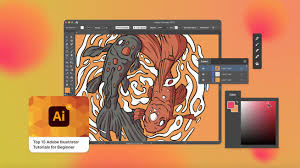
3. The Illustrator Workspace

  • Toolbar – Tools for drawing, selecting, and editing objects.

  • Properties Panel – Shows options for the currently selected tool or object.

  • Layers Panel – Organizes artwork into layers, similar to Photoshop.

  • Artboards – Can create multiple canvases in one document (useful for logo variations).


4. Key Tools for Beginners

  • Selection Tool (V) – Selects entire objects.

  • Direct Selection Tool (A) – Selects anchor points and paths for precise edits.

  • Pen Tool (P) – Create custom shapes with anchor points and curves.

  • Shape Tools (M, L) – Quickly draw rectangles, circles, polygons.

  • Type Tool (T) – Add text with full typographic control.

  • Eyedropper Tool (I) – Sample and apply colors.


5. Essential Concepts

  • Anchor Points & Paths – The foundation of vector graphics.

  • Stroke vs. Fill – Stroke is the outline; fill is the interior color.

  • Grouping (Ctrl/Cmd + G) – Combine multiple objects into one.

  • Layers – Organize artwork for complex projects.


6. Simple Workflow for Beginners

  1. Create a New Document – File > New. Choose an artboard size.

  2. Draw Shapes – Use rectangles, circles, and polygons to build your design.

  3. Use the Pen Tool – Create custom shapes with curves and lines.

  4. Add Color – Apply fills, strokes, and gradients.

  5. Add Text – Use the Type Tool to add and style text.

  6. Export Your Work – File > Export > Save As (SVG, PDF, PNG, etc.).


7. Tips for Beginners

  • Use Smart Guides (Ctrl/Cmd + U) for alignment help.

  • Learn the Pen Tool—it’s tricky at first but powerful.

  • Keep designs simple; start with basic shapes.

  • Explore Illustrator templates for inspiration.


8. Next Steps

After mastering the basics, move on to:

  • Creating logos and branding systems.

  • Designing icons and UI assets.

  • Advanced typography design.

  • Using Pathfinder and Shape Builder tools for complex shapes.


Conclusion

Adobe Illustrator is an essential tool for any designer interested in vector graphics. By learning the basics of the workspace, tools, and vector concepts, beginners can quickly start creating professional designs. With practice, Illustrator becomes a powerful tool for bringing ideas to life—scalable, sharp, and endlessly creative.

Beginner’s Guide to Adobe Photoshop for Designers

Adobe Photoshop is one of the most powerful and widely used design tools in the world. From photo editing to digital painting, web design, and branding, Photoshop is a versatile software every designer should know. This beginner’s guide will walk through the basics to help new designers get started.


1. Why Learn Photoshop?

  • Versatility – Suitable for photo editing, digital art, web graphics, and more.

  • Industry Standard – Used by agencies, freelancers, and professionals worldwide.

  • Integration – Works seamlessly with Adobe Illustrator, InDesign, and other tools.


2. Getting Started with Photoshop

Workspace Overview

  • Toolbar – Contains essential tools like Move, Brush, Eraser, and Selection tools.

  • Layers Panel – The foundation of Photoshop; each element sits on its own layer.

  • Options Bar – Displays settings for the selected tool.

  • Canvas – Where you create and edit your design.


3. Key Tools for Beginners

  • Move Tool (V) – Move objects and layers around.

  • Brush Tool (B) – Paint with different styles and sizes.

  • Eraser Tool (E) – Remove parts of a layer.

  • Marquee & Lasso Tools (M/L) – Make selections of areas to edit.

  • Text Tool (T) – Add and edit text.

  • Gradient Tool (G) – Create smooth color blends.


4. Understanding Layers

  • What are Layers? – Think of them as transparent sheets stacked on top of each other.

  • Adjustment Layers – Non-destructive edits like brightness, contrast, or color balance.

  • Layer Masks – Hide or reveal parts of a layer without deleting them.

  • Smart Objects – Allow resizing and editing without losing quality.


5. Basic Editing Steps

  1. Open Your Image → File > Open.

  2. Crop & Straighten → Use the Crop Tool (C).

  3. Adjust Colors → Use Adjustment Layers (Hue/Saturation, Levels).

  4. Retouch → Spot Healing Brush (J) to remove blemishes.

  5. Add Text/Graphics → Use the Text Tool and shape tools.

  6. Export Your Work → File > Export > Save for Web.


6. Tips for Beginners

  • Learn keyboard shortcuts to speed up your workflow.

  • Always work with non-destructive methods (use adjustment layers and masks).

  • Organize layers with names and groups.

  • Experiment with blending modes for creative effects.


7. Where to Go Next

Once you’ve mastered the basics, explore advanced features like:

  • Photo manipulation.

  • Digital painting.

  • Mockup creation.

  • Web and UI design.


Conclusion

Adobe Photoshop can feel overwhelming at first, but learning the basics—tools, layers, and simple edits—opens up endless creative possibilities. With practice, Photoshop becomes a natural extension of your creativity, whether you’re working on branding, web design, or digital art.