Productivity Apps for Freelance Designers

Freelance designers wear many hats—they are not only creators but also project managers, accountants, and marketers. With so many responsibilities, staying productive can be a challenge. Thankfully, there are plenty of productivity apps tailored to help freelancers streamline their workflow, manage time, and balance creativity with business tasks.


1. Why Freelancers Need Productivity Apps

  • Organization – Manage multiple clients and projects simultaneously.

  • Efficiency – Save time on repetitive tasks.

  • Professionalism – Deliver work on time with clear communication.

  • Work-Life Balance – Prevent burnout by managing schedules better.


2. Best Productivity Apps for Freelance Designers

Trello / Asana

  • Why: Keep projects organized with task boards and deadlines.

  • Best for: Managing multiple client projects without losing track.


Toggl Track

  • Why: Simple time tracking for accurate billing.

  • Best for: Freelancers who bill hourly or want to understand their productivity.


Slack

  • Why: Centralized communication with clients and collaborators.

  • Best for: Freelancers working with remote teams.


FreshBooks

  • Why: Accounting and invoicing software.

  • Best for: Designers who want to handle payments and expenses easily.


Notion

  • Why: Flexible workspace for notes, databases, and tasks.

  • Best for: Freelancers who want an all-in-one hub for projects and knowledge.


Google Drive / Dropbox

  • Why: Cloud storage for file sharing and collaboration.

  • Best for: Safely storing and delivering design files to clients.


Calendly

  • Why: Simplifies scheduling client meetings.

  • Best for: Freelancers tired of back-and-forth emails.


Canva (Pro)

  • Why: Quick design tool for non-intensive tasks.

  • Best for: Freelancers who need to create quick graphics for social or clients.


3. Tips for Freelancers Using Productivity Apps

  • Create a Central Hub – Use one app like Notion to keep everything connected.

  • Automate Where Possible – Link apps with Zapier to save time.

  • Track Time & Income – Combine Toggl with FreshBooks for seamless billing.

  • Separate Work & Personal – Use different calendars or tools to avoid burnout.


4. Benefits of Using Productivity Apps

  • Increased focus on design work rather than admin tasks.

  • Professional image with organized workflows.

  • Better client communication and satisfaction.

  • More free time by working smarter, not harder.


Conclusion

Freelance design is both rewarding and demanding. Productivity apps like Trello, Toggl, Slack, FreshBooks, Notion, and Google Drive help freelancers stay on top of projects, finances, and client communication. By integrating these tools into their daily workflow, freelance designers can spend less time on admin and more time doing what they love—designing.
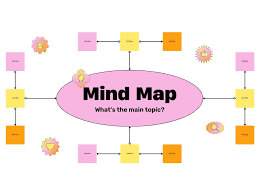

Mind Mapping Tools for Designers

Design often begins with abstract ideas—concepts, moods, and inspirations that are not yet structured. Mind mapping helps turn these raw thoughts into organized visuals, making it easier to plan projects, brainstorm creatively, and communicate ideas. For designers, mind mapping tools are essential to capture creativity and connect ideas visually.


1. Why Designers Benefit from Mind Mapping

  • Visual Thinking – Organize complex ideas in a way that sparks creativity.

  • Brainstorming – Explore multiple design directions quickly.

  • Project Planning – Map out workflows from concept to delivery.

  • Collaboration – Share visual maps with teams and clients for clarity.


2. Best Mind Mapping Tools for Designers

MindMeister

  • Why: A leading online mind mapping tool.

  • Features: Real-time collaboration, templates, integrations with task tools.

  • Best for: Teams brainstorming together online.


XMind

  • Why: Powerful, professional-grade mind mapping.

  • Features: Multiple diagram styles, brainstorming mode, presentation features.

  • Best for: Designers who need advanced visual planning.


Miro

  • Why: More than a whiteboard, great for brainstorming visually.

  • Features: Sticky notes, diagrams, collaborative boards.

  • Best for: Remote design teams.


Coggle

  • Why: Simple, browser-based mind mapping.

  • Features: Colorful branches, unlimited diagrams (paid), easy sharing.

  • Best for: Freelancers or beginners who want lightweight mind maps.


Lucidchart

  • Why: Combines flowcharts, diagrams, and mind maps.

  • Features: Professional templates, integrations with Google Workspace.

  • Best for: Designers working on structured workflows.


3. How to Use Mind Maps in Design

  • Brainstorming Concepts – Start with a central theme and branch out ideas.

  • Organizing Inspiration – Collect references, color palettes, and typography ideas.

  • Mapping User Journeys – Visualize how users interact with a product.

  • Project Breakdown – Divide large projects into manageable parts.


4. Benefits of Mind Mapping Tools

  • Encourages creativity by showing relationships between ideas.

  • Simplifies complex concepts for team or client presentations.

  • Saves time during brainstorming sessions.

  • Helps designers see the “big picture” before diving into details.


Conclusion

Mind mapping is a powerful way for designers to capture, expand, and structure ideas visually. Tools like MindMeister, XMind, Miro, Coggle, and Lucidchart make brainstorming and project planning more engaging and efficient. By turning thoughts into clear visual maps, designers can unlock creativity and communicate their vision with clarity.

Focus and Distraction-Blocking Tools for Designers

Design requires deep focus and creativity. Yet, distractions—social media, notifications, or endless emails—can easily break concentration. For designers, staying in the “creative flow” is essential to produce high-quality work. That’s why focus and distraction-blocking tools are powerful allies. They help minimize interruptions, improve productivity, and create space for deep creative thinking.


1. Why Designers Need Focus Tools

  • Maintain Creative Flow – Avoid losing ideas when distracted.

  • Boost Productivity – Get more done in less time.

  • Reduce Stress – Focused work feels less chaotic.

  • Improve Quality – Deep work leads to better design outcomes.


2. Best Focus and Distraction-Blocking Tools

Freedom

  • Why: Blocks distracting apps and websites across devices.

  • Features: Custom block lists, recurring focus sessions.

  • Best for: Designers who want total digital focus.


Cold Turkey Blocker

  • Why: Extremely powerful website and app blocker.

  • Features: Lock mode, scheduled blocks, password protection.

  • Best for: Designers who need strict discipline.


Forest

  • Why: Turns focus into a game.

  • Features: Plant virtual trees that grow when you stay focused.

  • Best for: Designers who enjoy motivation through gamification.


Focus Booster

  • Why: Based on the Pomodoro Technique.

  • Features: Work in timed intervals with breaks, simple interface.

  • Best for: Designers who thrive on structured time management.


RescueTime

  • Why: Tracks digital activity to identify distractions.

  • Features: Productivity reports, focus sessions, goal tracking.

  • Best for: Designers who want insights into their habits.


3. Tips for Staying Focused

  • Use Pomodoro Sessions – Work in 25–50 minute bursts with short breaks.

  • Turn Off Notifications – Silence devices during creative sessions.

  • Designate Work Hours – Create a routine that signals focus time.

  • Combine Tools – Use RescueTime to identify habits, Freedom to block distractions.


4. Benefits of Focus Tools

  • Achieve more in less time.

  • Protect creativity from interruptions.

  • Build healthier work routines.

  • Deliver higher-quality designs.


Conclusion

Distractions are the enemy of creativity. Focus tools like Freedom, Cold Turkey, Forest, Focus Booster, and RescueTime give designers the structure and discipline to stay in the zone. By blocking out noise and fostering deep work, these tools empower designers to create their best work consistently.

Note-Taking Tools for Designers

Design ideas can strike anywhere—during a client meeting, on the train, or while browsing online. Without a reliable note-taking system, those ideas risk being forgotten. For designers, note-taking tools are not just for jotting down thoughts—they also help organize project requirements, keep track of feedback, and store inspiration.


1. Why Designers Need Note-Taking Tools

  • Capture Ideas Quickly – Sketch or write down thoughts before they’re lost.

  • Organize Feedback – Store client comments in one place.

  • Track Inspiration – Save references, images, or links for future projects.

  • Enhance Collaboration – Share notes and brainstorms with teammates.


2. Best Note-Taking Tools for Designers

Notion

  • Why: A flexible all-in-one workspace.

  • Features: Databases, Kanban boards, rich text, and media embedding.

  • Best for: Designers who want structured, customizable notes.


Evernote

  • Why: One of the most popular note-taking apps.

  • Features: Web clipping, notebooks, tagging, and cross-device sync.

  • Best for: Designers who gather lots of references from the web.


OneNote (Microsoft)

  • Why: Digital notebook with sketching support.

  • Features: Hand-drawn notes, multimedia integration, easy search.

  • Best for: Designers who prefer freeform note-taking.


Apple Notes / Google Keep

  • Why: Simple, fast, and synced across devices.

  • Features: Checklists, voice notes, quick sketches.

  • Best for: Designers who need a lightweight note app.


Milanote

  • Why: Built for creatives, with a visual approach to notes.

  • Features: Drag-and-drop boards, moodboards, file attachments.

  • Best for: Designers working with visual inspiration and brainstorming.


3. Tips for Effective Note-Taking

  • Use Tags & Categories – Keep notes searchable.

  • Save Visuals – Screenshots, images, and sketches help capture design inspiration.

  • Sync Across Devices – Access notes on phone, tablet, and desktop.

  • Review Regularly – Revisit notes to refine ideas into actionable designs.


4. Benefits of Good Note-Taking Habits

  • Keeps projects organized.

  • Ensures no client request is forgotten.

  • Encourages creativity through idea capture.

  • Provides a library of inspiration for future projects.


Conclusion

For designers, ideas are the most valuable resource. With tools like Notion, Evernote, OneNote, Milanote, and simple apps like Apple Notes, capturing and organizing ideas has never been easier. A strong note-taking system ensures creativity is never wasted and that inspiration is always just a click away.

Automation Tools for Designers

Design work is creative, but many parts of the workflow are repetitive—resizing images, exporting assets, renaming files, or moving documents between folders. These tasks eat up valuable time that could be spent on actual design. That’s why automation tools are game-changers for designers. They reduce repetitive tasks, speed up workflows, and let you focus on creativity.


1. Why Designers Should Use Automation

  • Save Time – Automate tasks like file exports and renaming.

  • Reduce Errors – Less manual work means fewer mistakes.

  • Increase Productivity – Spend more time designing, less time on admin work.

  • Consistency – Ensure tasks like formatting or asset delivery are always accurate.


2. Best Automation Tools for Designers

Zapier

  • Why: Connects thousands of apps to automate workflows.

  • Features: Move files automatically, send notifications, sync updates across tools.

  • Best for: Designers juggling multiple platforms (e.g., Google Drive + Slack + Trello).


Automator (Mac) & Power Automate (Windows)

  • Why: Built-in system tools to create custom automation.

  • Features: Batch renaming files, moving assets, or setting design file workflows.

  • Best for: Designers who want simple desktop automation.


Alfred (Mac)

  • Why: A productivity app with powerful shortcuts.

  • Features: Custom hotkeys, snippets, and workflows.

  • Best for: Mac users looking to speed up repetitive tasks.


Canva Magic Resize & Adobe Actions

  • Why: Automates repetitive design adjustments.

  • Features: Resize graphics for different platforms instantly (social media, print, etc.).

  • Best for: Designers creating multi-platform assets.


Integromat (Make)

  • Why: Advanced automation for creative professionals.

  • Features: Complex workflows, file handling, API integrations.

  • Best for: Tech-savvy designers who want custom automation pipelines.


3. Common Automation Ideas for Designers

  • Auto-resize social media graphics into multiple formats.

  • Auto-save exported design files to cloud storage.

  • Rename files automatically with project names + dates.

  • Send clients automated notifications when files are ready.

  • Back up design files daily to Dropbox or Google Drive.


4. Benefits of Automation in Design

  • Less Repetition – Designers avoid boring tasks.

  • Faster Delivery – Projects move quicker with automated steps.

  • Peace of Mind – Backups and workflows run in the background.

  • More Creativity – More energy for brainstorming and design work.


Conclusion

Automation is not about replacing creativity—it’s about protecting it. By using tools like Zapier, Alfred, Canva Magic Resize, Adobe Actions, and Integromat, designers can eliminate repetitive tasks and free up more time for design thinking. The less time you spend on admin work, the more you can focus on producing outstanding creative work.

File Management Tools for Designers

Design projects generate a huge number of files—wireframes, mockups, source files, client revisions, exports, and more. Without proper file management, it’s easy to lose track of versions, misplace assets, or waste time searching for the right document. That’s where file management tools come in. They help designers organize, store, and share files efficiently.


1. Why File Management Is Crucial

  • Organization – Keep projects tidy and easy to navigate.

  • Collaboration – Share assets with clients or team members seamlessly.

  • Version Control – Avoid confusion over multiple file versions.

  • Security – Protect valuable design files from data loss.


2. Best File Management Tools for Designers

Dropbox

  • Why: Reliable cloud storage with simple sharing options.

  • Features: File sync across devices, folder sharing, version history.

  • Best for: Freelancers and small teams.


Google Drive

  • Why: Easy to use and integrates with Google Workspace.

  • Features: Real-time collaboration, file sharing, 15GB free storage.

  • Best for: Teams already using Google Docs and Sheets.


pCloud

  • Why: Offers lifetime storage plans for long-term file management.

  • Features: Secure cloud storage, file encryption, easy sharing.

  • Best for: Designers who want a one-time payment solution.


Adobe Creative Cloud Libraries

  • Why: Designed specifically for creatives.

  • Features: Asset libraries for colors, graphics, and fonts synced across Adobe apps.

  • Best for: Designers working within the Adobe ecosystem.


WeTransfer

  • Why: Simple tool for sending large files.

  • Features: Free transfers up to 2GB, paid accounts for larger storage.

  • Best for: Sending design files to clients quickly.


3. Tips for File Organization

  • Create Clear Folder Structures – Use categories like “Wireframes,” “Mockups,” and “Final.”

  • Use Consistent Naming Conventions – e.g., ProjectName_Version_Date.psd.

  • Leverage Version Control – Avoid clutter by using tools that track changes.

  • Backup Regularly – Keep a copy on cloud storage and an external drive.


4. Benefits of Good File Management

  • Saves time searching for files.

  • Prevents lost work during revisions.

  • Keeps clients happy with organized deliveries.

  • Protects against accidental deletions or crashes.


Conclusion

File management is the backbone of a smooth design workflow. Tools like Dropbox, Google Drive, pCloud, Adobe Creative Cloud Libraries, and WeTransfer help designers store, organize, and share files effortlessly. By combining good tools with smart organization habits, designers can ensure their files are always accessible, secure, and ready when needed.

Best Collaboration Tools for Designers

Design is rarely a solo journey. Whether working with other designers, developers, or clients, collaboration is essential. Smooth communication and feedback loops can save time, prevent misunderstandings, and improve the final product. With the right tools, designers can share ideas, get feedback, and work together seamlessly.


1. Why Collaboration Tools Matter for Designers

  • Real-Time Feedback – Avoid endless email chains by commenting directly on designs.

  • Transparency – Keep everyone aligned on progress and changes.

  • Efficiency – Reduce miscommunication and duplicated work.

  • Client Involvement – Easy ways for clients to review and approve designs.


2. Best Collaboration Tools for Designers

Figma

  • Why: Cloud-based design tool for real-time collaboration.

  • Features: Shared design files, live commenting, version history.

  • Best for: Teams and freelancers who want seamless design collaboration.


Miro

  • Why: A digital whiteboard for brainstorming and planning.

  • Features: Sticky notes, diagrams, mind maps, and templates.

  • Best for: Remote teams needing a creative workshop space.


Slack

  • Why: A central hub for team communication.

  • Features: Channels for projects, file sharing, integrations with Figma, Trello, and Google Drive.

  • Best for: Design teams who want quick, organized communication.


InVision

  • Why: Prototyping and feedback tool.

  • Features: Interactive prototypes, comment threads, design handoff.

  • Best for: Designers presenting clickable mockups to stakeholders.


Google Workspace (Docs, Sheets, Drive)

  • Why: Easy collaboration on documents and storage.

  • Features: Real-time editing, file sharing, cloud storage.

  • Best for: Teams who need a simple, universal collaboration suite.


3. Choosing the Right Tool

  • Design-Heavy Teams → Figma, InVision.

  • Brainstorming Sessions → Miro.

  • Communication & Updates → Slack.

  • Cross-Functional Teams → Google Workspace.


4. Tips for Better Collaboration

  • Set Clear Roles – Define who is responsible for what.

  • Centralize Communication – Avoid scattering updates across multiple channels.

  • Encourage Feedback Early – Catch issues before designs are finalized.

  • Use Version Control – Prevent overwriting each other’s work.


5. Benefits of Collaboration Tools

  • Faster approvals from clients.

  • Stronger alignment between designers and developers.

  • More creativity through collective brainstorming.

  • Less frustration and fewer miscommunications.


Conclusion

Great design doesn’t happen in isolation. Collaboration tools like Figma, Miro, Slack, InVision, and Google Workspace help designers work more efficiently and creatively with others. The right tool ensures smoother communication, faster iterations, and ultimately, better design outcomes.

Time Tracking Tools for Designers

For designers, time is money—literally. Whether working as a freelancer billing by the hour or as part of a design team juggling multiple projects, tracking time accurately is essential. It ensures fair billing, improves productivity, and highlights where time can be saved. Let’s explore some of the best time tracking tools for designers.


1. Why Time Tracking Matters for Designers

  • Accurate Billing – Freelancers can invoice clients confidently.

  • Productivity Insights – Reveals how time is really spent.

  • Project Management – Helps estimate how long tasks take for future planning.

  • Work-Life Balance – Identifies overworking patterns and prevents burnout.


2. Best Time Tracking Tools

Toggl Track

  • Why: Simple, intuitive interface for freelancers and teams.

  • Features: One-click timer, detailed reports, integrations with tools like Asana and Trello.

  • Best for: Freelancers and small teams needing easy setup.


Harvest

  • Why: Combines time tracking with invoicing.

  • Features: Track billable hours, send invoices directly, and monitor budgets.

  • Best for: Agencies and freelancers who need billing integration.


Clockify

  • Why: Free time tracking tool with unlimited users.

  • Features: Timesheets, project tracking, productivity reports.

  • Best for: Teams on a budget.


RescueTime

  • Why: Automatically tracks how time is spent on apps and websites.

  • Features: Productivity scores, focus sessions, distractions monitoring.

  • Best for: Designers who want to minimize distractions.


Everhour

  • Why: Seamlessly integrates with project management tools.

  • Features: Time tracking inside Asana, Trello, or ClickUp; budget and resource tracking.

  • Best for: Teams already using project management platforms.


3. How to Use Time Tracking Effectively

  • Track Everything at First – Learn how long tasks like wireframing, prototyping, or revisions actually take.

  • Set Categories – Separate client projects, admin work, and personal learning.

  • Review Weekly Reports – Spot time wasters and adjust workflows.

  • Automate Where Possible – Use integrations to log time without manual input.


4. Benefits Beyond Billing

Time tracking isn’t only about invoices. It helps designers:

  • Quote More Accurately – Know how long similar projects will take.

  • Manage Deadlines – Spot potential delays before they become issues.

  • Improve Efficiency – Focus more on creative work by identifying unproductive habits.


Conclusion

Time tracking may feel tedious at first, but with the right tools it becomes second nature. Solutions like Toggl, Harvest, Clockify, RescueTime, and Everhour help designers stay accountable, bill fairly, and improve productivity. In the long run, time tracking isn’t just about measuring hours—it’s about making every hour count.

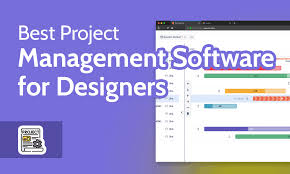
Best Project Management Tools for Designers

Design projects often involve multiple tasks—brainstorming, prototyping, client feedback, revisions, and delivery. Without proper organization, it’s easy to miss deadlines or lose track of important details. That’s why project management tools are essential for designers. They help structure workflows, improve collaboration, and keep projects on schedule.


1. Why Designers Need Project Management Tools

  • Clarity – Breaks projects into manageable tasks.

  • Collaboration – Keeps designers, developers, and clients aligned.

  • Efficiency – Prevents duplicated work and missed deadlines.

  • Scalability – Works for solo designers or large creative teams.


2. Top Project Management Tools

Trello

  • Best for: Freelancers & small teams

  • Why: Simple Kanban board layout makes task management visual and intuitive.

  • Key Features: Drag-and-drop cards, checklists, due dates, integrations with Google Drive and Slack.


Asana

  • Best for: Medium to large teams

  • Why: Offers advanced project tracking with timelines and workload management.

  • Key Features: Task dependencies, milestones, project templates, multiple views (list, board, timeline).


Monday.com

  • Best for: Agencies handling multiple clients

  • Why: Highly customizable dashboards and automation features.

  • Key Features: Workflow automation, time tracking, reporting dashboards.


Notion

  • Best for: Designers who want flexibility

  • Why: Combines task management, note-taking, and knowledge bases in one tool.

  • Key Features: Databases, kanban boards, wikis, collaborative editing.


ClickUp

  • Best for: All-in-one project management

  • Why: Offers task, document, and goal tracking in one platform.

  • Key Features: Gantt charts, team chat, custom workflows.


3. Choosing the Right Tool

When selecting a project management tool, consider:

  • Team Size – Solo designers may prefer simple tools like Trello, while agencies need advanced platforms.

  • Budget – Some tools offer free plans, but premium features often require paid upgrades.

  • Workflow Style – Kanban boards vs. timelines vs. lists—pick the one that fits your style.

  • Integrations – Ensure it connects with design tools like Figma, Adobe Creative Cloud, or Slack.


4. Tips for Designers Using Project Management Tools

  • Break projects into small, clear tasks.

  • Set realistic deadlines to avoid burnout.

  • Use labels and tags to categorize design stages (e.g., “wireframe,” “prototype,” “final”).

  • Share boards with clients for transparent communication.


Conclusion

Project management tools aren’t just for managers—they’re invaluable for designers, too. By using tools like Trello, Asana, Monday.com, Notion, or ClickUp, designers can stay organized, collaborate effectively, and deliver projects on time. The right tool can make the difference between a stressful workflow and a smooth, productive one.

Top Productivity Tools Every Designer Should Know

Design work is creative, but it also involves countless files, feedback loops, and deadlines. Without the right productivity tools, designers can easily feel overwhelmed. The good news is that there are many tools designed specifically to streamline workflows, save time, and boost creativity. Here are some of the most essential ones.


1. Project Management Tools

Trello

A card-based system that helps designers manage tasks and deadlines. Perfect for freelancers or small teams.

Asana

Great for larger projects, offering timelines, progress tracking, and integrations with design tools.

Notion

Combines notes, databases, and project tracking in one flexible platform.


2. Time Management & Focus Tools

Toggl

Simple time tracking to understand how long tasks take and bill clients accurately.

RescueTime

Tracks how you spend your time on devices and provides productivity reports.

Focus Booster

Based on the Pomodoro Technique, helping designers stay productive in focused intervals.


3. File Organization & Cloud Storage

Dropbox

Syncs large design files across devices and makes sharing easy.

Google Drive

Simple collaboration and sharing, with generous free storage.

pCloud

Secure cloud storage with lifetime plans—a good long-term option.


4. Collaboration & Feedback

Figma

Real-time collaboration on designs with easy sharing for feedback.

Miro

A virtual whiteboard for brainstorming and planning.

Slack

Keeps design teams connected and integrates with tools like Figma and Trello.


5. Automation Tools

Zapier

Connects apps and automates repetitive tasks, like saving attachments to cloud storage.

Alfred (Mac) / PowerToys (Windows)

Boosts efficiency with shortcuts and quick actions.


6. Why Productivity Tools Matter for Designers

  • Save Time – Automate repetitive tasks.

  • Stay Organized – Keep files, projects, and deadlines in order.

  • Improve Collaboration – Work smoothly with clients and teams.

  • Boost Creativity – Less stress means more focus on creative work.


Conclusion

The right productivity tools free designers from unnecessary stress, allowing them to focus on what really matters: creating amazing work. By integrating project management, collaboration, time tracking, and automation tools, designers can streamline their workflow and deliver better results faster.