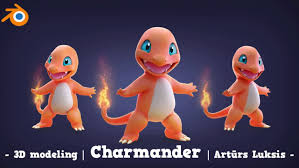

Blender is a free, open-source 3D software that has become one of the most powerful tools for 3D modeling, animation, and rendering. From game assets to product visualization and even films, Blender is used by professionals and hobbyists alike. This beginner’s guide introduces the basics of Blender for 3D design.
1. Why Use Blender?
Free & Open Source – No cost, with a strong community of developers.
All-in-One – Supports modeling, sculpting, animation, rendering, and video editing.
Industry Adoption – Used in indie films, game studios, and design agencies.
Cross-Platform – Available on Windows, macOS, and Linux.
Constant Updates – Frequent improvements and new features.
2. The Blender Interface
3D Viewport – Main area to model and manipulate objects.
Outliner – Organizes all objects in the scene.
Properties Panel – Adjusts materials, modifiers, and settings.
Timeline – For animation and keyframe editing.
Toolbar – Contains selection, transform, and modeling tools.
3. Key Concepts for Beginners
Meshes – Basic objects (cube, sphere, cylinder) used for modeling.
Vertices, Edges, Faces – The building blocks of 3D models.
Modifiers – Non-destructive edits like subdivision or mirror.
Materials & Shaders – Define how objects look (color, texture, reflection).
Lighting – Essential for realistic renders.
Camera – Controls the viewpoint for rendering.
4. Basic Workflow in Blender
Start a New Project – File > New > General.
Add Objects – Shift + A to insert cubes, spheres, or other primitives.
Edit Mode – Tab key to switch between Object Mode and Edit Mode.
Modeling – Move, extrude, and scale to shape your design.
Apply Materials – Use the Properties Panel to add colors and textures.
Lighting & Camera – Place lights and adjust the camera angle.
Render – Press F12 to generate an image of your scene.
5. Tips for Beginners
Learn navigation: middle mouse button to rotate, Shift + middle button to pan, scroll to zoom.
Use mirror modifier for symmetrical models.
Save often—Blender projects can get complex.
Start with simple models (e.g., a coffee cup) before moving to advanced projects.
6. Advanced Features to Explore
Sculpting – Create organic models like characters.
Animation – Add keyframes for movement and effects.
Grease Pencil – 2D animation inside a 3D environment.
Cycles & Eevee Render Engines – Realistic vs. real-time rendering.
Add-ons – Extend Blender with free or paid plugins.
Conclusion
Blender is a powerful, versatile tool for 3D design that rivals paid software. By mastering the basics of modeling, materials, and rendering, beginners can quickly bring their 3D ideas to life. With dedication and practice, Blender opens the door to animation, game design, and professional 3D art—all for free.