
Adobe Photoshop is one of the most powerful and widely used design tools in the world. From photo editing to digital painting, web design, and branding, Photoshop is a versatile software every designer should know. This beginner’s guide will walk through the basics to help new designers get started.
1. Why Learn Photoshop?
Versatility – Suitable for photo editing, digital art, web graphics, and more.
Industry Standard – Used by agencies, freelancers, and professionals worldwide.
Integration – Works seamlessly with Adobe Illustrator, InDesign, and other tools.
2. Getting Started with Photoshop
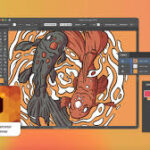
Workspace Overview
Toolbar – Contains essential tools like Move, Brush, Eraser, and Selection tools.
Layers Panel – The foundation of Photoshop; each element sits on its own layer.
Options Bar – Displays settings for the selected tool.
Canvas – Where you create and edit your design.
3. Key Tools for Beginners
Move Tool (V) – Move objects and layers around.
Brush Tool (B) – Paint with different styles and sizes.
Eraser Tool (E) – Remove parts of a layer.
Marquee & Lasso Tools (M/L) – Make selections of areas to edit.
Text Tool (T) – Add and edit text.
Gradient Tool (G) – Create smooth color blends.
4. Understanding Layers
What are Layers? – Think of them as transparent sheets stacked on top of each other.
Adjustment Layers – Non-destructive edits like brightness, contrast, or color balance.
Layer Masks – Hide or reveal parts of a layer without deleting them.
Smart Objects – Allow resizing and editing without losing quality.
5. Basic Editing Steps
Open Your Image → File > Open.
Crop & Straighten → Use the Crop Tool (C).
Adjust Colors → Use Adjustment Layers (Hue/Saturation, Levels).
Retouch → Spot Healing Brush (J) to remove blemishes.
Add Text/Graphics → Use the Text Tool and shape tools.
Export Your Work → File > Export > Save for Web.
6. Tips for Beginners
Learn keyboard shortcuts to speed up your workflow.
Always work with non-destructive methods (use adjustment layers and masks).
Organize layers with names and groups.
Experiment with blending modes for creative effects.
7. Where to Go Next
Once you’ve mastered the basics, explore advanced features like:
Photo manipulation.
Digital painting.
Mockup creation.
Web and UI design.
Conclusion
Adobe Photoshop can feel overwhelming at first, but learning the basics—tools, layers, and simple edits—opens up endless creative possibilities. With practice, Photoshop becomes a natural extension of your creativity, whether you’re working on branding, web design, or digital art.