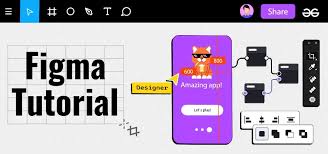
Figma has quickly become one of the most popular tools for UI/UX designers. Unlike traditional desktop design software, Figma is cloud-based, allowing real-time collaboration between team members. Whether you’re designing websites, mobile apps, or prototypes, Figma makes the process efficient and accessible.
1. Why Use Figma?
Cloud-Based – No need to install heavy software; works in your browser.
Real-Time Collaboration – Similar to Google Docs, multiple designers can edit together.
Cross-Platform – Works on Windows, Mac, Linux, and even mobile.
Free Plan – Offers powerful features at no cost, perfect for beginners.
2. Understanding the Workspace
Canvas – The main area where you design.
Layers Panel – Organizes frames, groups, and objects.
Toolbar – Contains tools for frames, shapes, text, and pen.
Properties Panel – Adjusts settings like size, color, and alignment.
Assets Panel – Stores reusable components and styles.
3. Key Tools for Beginners
Frame Tool (F) – Create artboards for screens (web, mobile, etc.).
Shape Tools (R, O) – Build rectangles, circles, and other basic shapes.
Pen Tool (P) – Create custom paths and vector shapes.
Text Tool (T) – Add and edit typography.
Components – Reusable design elements (e.g., buttons, nav bars).
Constraints – Control how elements behave when resizing.
4. Basic Workflow for UI Design
Create a Frame – Select a screen size (desktop, iPhone, Android).
Add Layout Grids – Helps align content and maintain consistency.
Design UI Elements – Use shapes, text, and images.
Create Components – Turn repeated elements (buttons, icons) into components.
Apply Styles – Set consistent colors, text styles, and spacing.
Prototype – Link frames with interactive flows.
Share & Collaborate – Invite clients or teammates to view or edit.
5. Collaboration Features
Comments – Stakeholders can leave feedback directly on designs.
Version History – Access previous versions of your file anytime.
Plugins – Extend functionality with tools for icons, stock photos, and charts.
6. Tips for Beginners
Start with free UI kits available in the community.
Use auto layout for responsive, flexible components.
Learn keyboard shortcuts to speed up your workflow.
Organize layers with clear names and groupings.
7. Advanced Features to Explore
Design Systems – Build a library of components and styles for team consistency.
Interactive Components – Create reusable buttons with hover states.
FigJam – A whiteboard tool for brainstorming and wireframing.
Conclusion
Figma is a game-changer for UI/UX designers, offering powerful tools for design and collaboration in one platform. By learning frames, components, and prototyping, beginners can quickly create professional user interfaces and share them with clients or teammates. With practice, Figma can become the central hub for all your design projects.